IPHONE RINGTONE GUIDE
How to Set a Custom Ringtone on iPhone
Use Apple's documented GarageBand workflow to turn the MP3 you downloaded from AIRingtoneMaker into an iPhone ringtone. The complete instructions remain visible without JavaScript, and the diagram is only an original visual aid rather than a system screenshot.
Sources reviewed:
Before you start: MP3 and optional on-demand M4R
AIRingtoneMaker's primary result is a persisted MP3 that you can preview and download. Generation length is not precisely controllable, so use GarageBand to select or shorten the part you want before export.
M4R with AAC audio is an iPhone ringtone format. After an eligible MP3 succeeds, its signed-in owner can explicitly request asynchronous M4R preparation. The request can be requesting, processing, ready, failed, or unavailable; the M4R can be downloaded only when ready, while MP3 playback and download remain available independently. Downloading an M4R does not install it or change iPhone settings.
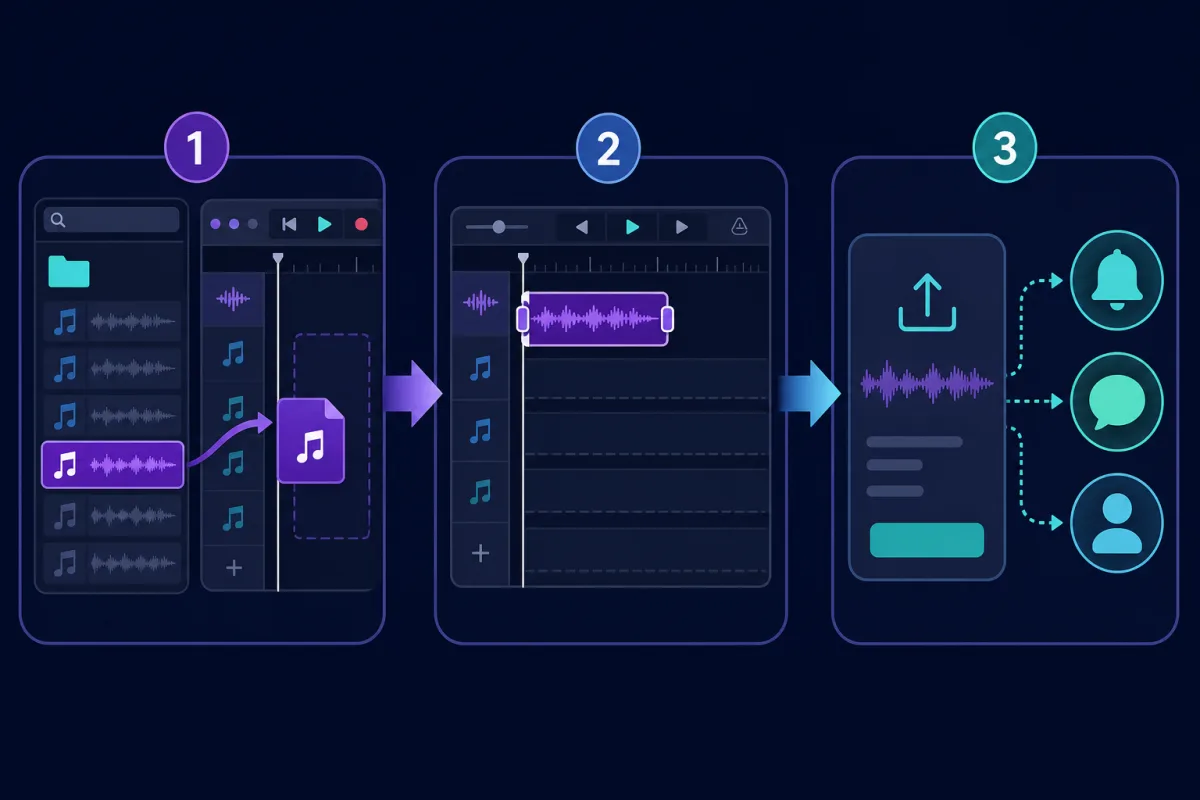
GarageBand: Create and assign a ringtone
Use this Apple-documented workflow to import a downloaded MP3 from Files, prepare the audio, and export it as an iPhone ringtone.
Steps
- Download the MP3 and save it in Files on your iPhone.
- Open GarageBand and create a new Audio Recorder project.
- Open Tracks and the Loop Browser, choose Files, then drag the audio to the far left of the track.
- Return to My Songs, select the project, then choose Share, Ringtone, and Export.
- Choose Standard Ringtone, Standard Text Tone, or Assign to Contact.
iPhone ringtones can be up to 30 seconds. If the export is longer, GarageBand can shorten it after you tap Continue, or you can cancel and trim it yourself.
Troubleshooting
The MP3 is dimmed or cannot be imported
Make sure the audio is downloaded to the iPhone and is not protected. In GarageBand, choose Files and Browse items from the Files app, then import the MP3 again.
The export is longer than 30 seconds
At export, choose Continue to let GarageBand shorten audio longer than 30 seconds, or choose Cancel and trim the region yourself before exporting again.
GarageBand is not installed
Install GarageBand from the App Store, then create a new Audio Recorder project. AIRingtoneMaker does not control GarageBand availability or your iPhone settings.
Reviewed sources
These external references document the platform-owned actions in this guide. They are maintenance evidence, not an affiliation or endorsement.
- Apple Support: Create a custom ringtone on your iPhone
Official platform documentation
- Apple Support: Use tones and ringtones with your iPhone or iPad
Official platform documentation