ANDROID RINGTONE GUIDE
How to Set a Custom Ringtone on Android
Android offers more than one setup path. Try the documented Files by Google action first; if it is unavailable, place the MP3 in the Ringtones folder and choose it from your device's sound settings. Android version, manufacturer software, file manager, permissions, and menu labels can all change the exact screens you see.
Sources reviewed:
Before you start: keep the downloaded MP3
AIRingtoneMaker's primary result is a persisted MP3 that you can preview and download. Generation length is not precisely controllable, and downloading the file does not install it or change Android settings.
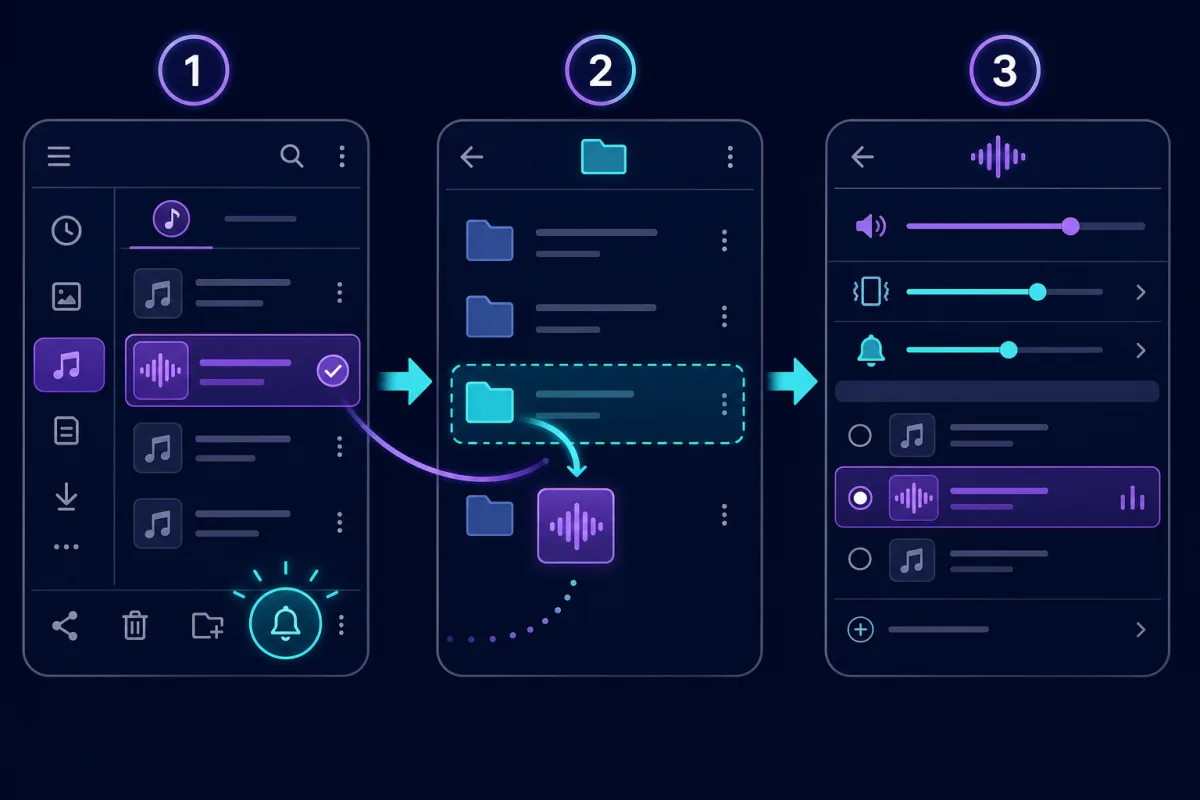
Files by Google: Set directly
Use Files by Google when the app offers a direct ringtone action.
Steps
- Download the MP3 to your Android device.
- Open Files by Google, go to Audio, then find and play the file.
- Tap More, then choose Set as ringtone.
- If prompted, tap Continue and allow Files to modify system settings.
The direct action is documented for Files by Google. Other file managers may use a different label or may not offer it.
Sources for this method
Settings fallback
Use the Ringtones folder and system sound settings when a direct file action is unavailable.
Steps
- Download the MP3 to your Android device.
- In Files or My Files, move or copy the MP3 into the Ringtones folder.
- Open Settings, then Sound & vibration, then Phone ringtone or the equivalent menu.
- Open My Sounds or Add ringtone, choose the MP3, then save your selection.
My Sounds, Add ringtone, and other menu names vary by Android brand and system version.
Troubleshooting
Set as ringtone is missing
Use the Ringtones-folder and sound-settings method below. A direct Set as ringtone action is not universal across Android file managers.
Your settings menu looks different
Look for the equivalent ringtone, phone ringtone, sound, or My Sounds setting supplied by your manufacturer. The Pixel labels in this guide are examples, not universal names.
The MP3 is not listed
Confirm that the MP3 is stored on the phone, check the Ringtones folder, and reopen the device's ringtone picker. Storage access and media scanning behavior vary by device.
Reviewed sources
These external references document the platform-owned actions in this guide. They are maintenance evidence, not an affiliation or endorsement.
- Files by Google Help: Set an audio file as your ringtone
Official platform documentation
- Files by Google Help: Move files to a folder in internal storage
Official platform documentation
- Pixel Phone Help: Change ringtones and add an MP3
Official platform documentation